
VPN Leaks Explained: Detection & Prevention

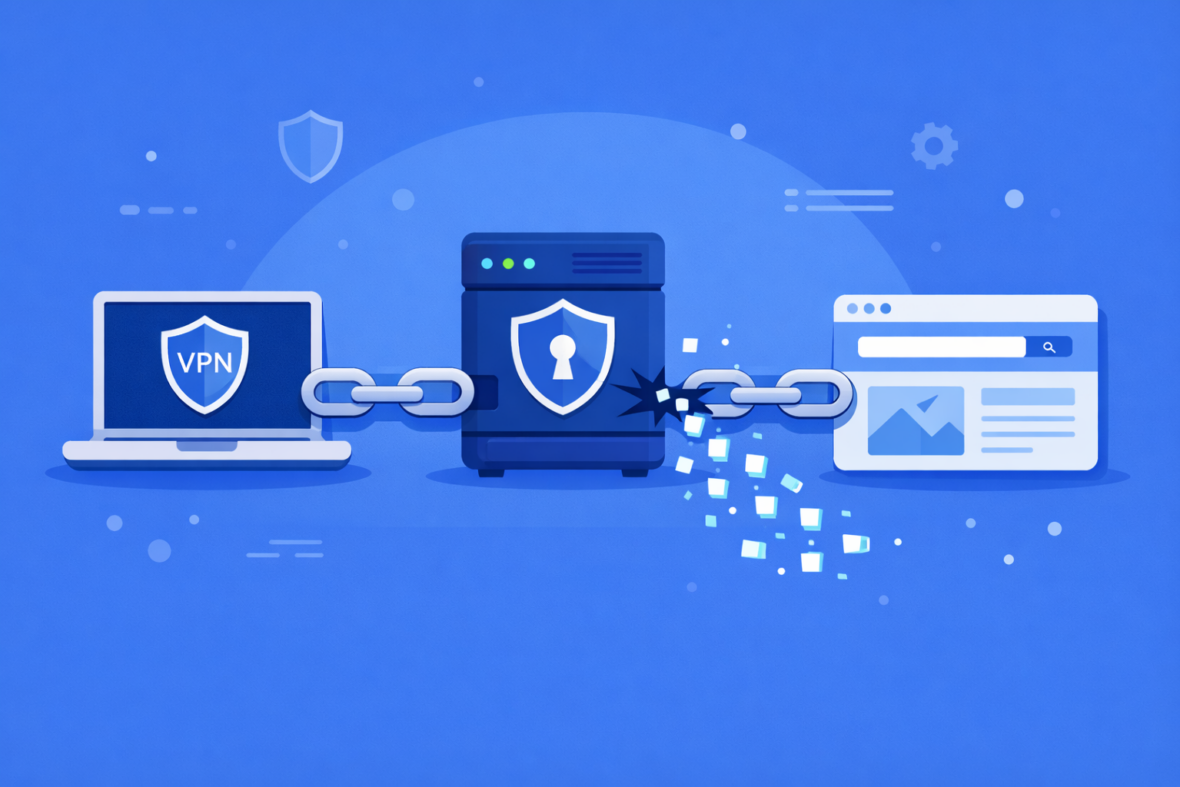
DNS leaks, IP leaks, and WebRTC leaks are commonly mentioned in discussions about VPN privacy, but the term “leak” is often used without clear explanation. In many cases, these issues are not the result of broken VPN software, but of how different parts of a system handle network traffic. Understanding what these leaks are, how to detect them, and how to fix them is essential for maintaining real VPN privacy instead of false confidence.
This guide explains what leaks are, how they occur, why they matter, how to test for them, and how to fix them. Understanding where VPN protection starts and ends can help set realistic expectations about what a VPN can and cannot control, and gives you tools to verify your VPN actually protects you.
What “Leaks” Mean in the Context of VPN Privacy
In the context of VPN privacy, a “leak” generally refers to network information that reaches the internet outside of the VPN tunnel. When this happens, certain requests or identifiers may be handled by the default network connection instead of the encrypted VPN connection.
DNS leaks, IP leaks, and WebRTC leaks are often grouped together because they involve different layers of the networking stack. In many situations, the VPN tunnel itself remains active, but specific types of traffic bypass it due to system or application behavior.
| What a VPN typically protects | Traffic routed through the VPN tunnel, using the VPN server’s IP address. |
|---|---|
| What can bypass the tunnel | DNS requests, browser-level connections, or traffic during brief connection changes. |
Because these behaviors depend on operating systems, browsers, and user settings, leaks are often situational rather than constant.
How DNS Leaks Occur and What They Reveal
DNS (Domain Name System) requests are used to translate website names into IP addresses. Even when a VPN is connected, DNS requests may be handled separately from regular traffic, depending on system configuration and VPN settings.
A DNS leak occurs when these requests are sent to a default or third-party DNS resolver instead of one associated with the VPN connection. This means that while website content may travel through the VPN tunnel, the domain lookup itself does not.
- A website request is initiated: Your device attempts to resolve a domain name to an IP address.
- The DNS request bypasses the VPN: The system sends the request to a non-VPN DNS resolver, often provided by the ISP or operating system.
- The resolver receives domain information: The visited domain can be visible to that resolver, even though page content remains encrypted.
DNS leaks usually expose domain names rather than full URLs or page content. However, patterns of DNS requests may still provide insight into browsing behavior, which is why DNS handling is an important part of VPN privacy design. For privacy-conscious users, DNS leaks are one of the most serious types because your ISP can see every website you visit.
IP Leaks: When Your Real IP Address Is Still Exposed
An IP leak occurs when your real IP address is visible to a website or service despite an active VPN connection. This can undermine one of the main reasons people use a VPN: masking their public IP address.
IP leaks can happen in several ways and are often linked to network transitions, protocol behavior, or incomplete support for certain IP versions. The likelihood and impact of IP leaks can vary by device, operating system, and network environment.
| IPv4 leaks | Traffic falls back to the default IPv4 connection instead of the VPN tunnel. |
|---|---|
| IPv6 leaks | IPv6 traffic is routed outside the VPN if IPv6 is not fully supported or disabled. |
| Routing or reconnection leaks | Brief exposure during network changes, sleep states, or VPN reconnections. |
When an IP leak occurs, websites may see approximate location, ISP information, or network type associated with the real IP address. For anonymity-focused users, IP leaks defeat the purpose of the VPN entirely.
WebRTC Leaks and Browser-Level Privacy Risks
WebRTC is a browser technology designed to enable real-time communication features such as video calls and peer-to-peer connections. To function efficiently, WebRTC may attempt to discover local and public IP addresses directly through the browser.
Because WebRTC operates at the browser level, its behavior can differ from system-wide network routing. In some cases, this allows IP information to be exposed even when a VPN is active. This does not necessarily indicate a VPN failure, but a boundary between browser features and network-level protection.
❗ Browser vs System
VPNs primarily protect network traffic at the system level. Browser technologies like WebRTC may require separate controls or settings, and VPN protection may not fully override browser behavior in all cases.
WebRTC leaks are typically associated with browsers rather than VPN apps, which is why mitigation often involves browser configuration in addition to VPN settings.
How to Test for VPN Leaks
Testing for leaks is straightforward and takes 5-10 minutes. Multiple free tools check for different leak types simultaneously. The most comprehensive test is ipleak.net—it checks DNS, IPv4, IPv6, and WebRTC leaks in one place.
- Connect to your VPN: Open your VPN app and connect to a server. Wait 5 seconds for full connection establishment.
- Visit ipleak.net: Open a web browser and go to ipleak.net to see what information is visible about your connection.
- Review results: The page displays your detected IP address, location, ISP, and DNS servers. Compare these to your VPN provider’s expected results.
- Interpret findings: If the displayed IP matches your VPN server’s IP, no leak. If it shows your home ISP or real location, you have a leak.
- Test alternative servers: Connect to a different VPN server and repeat the test. Some servers leak while others don’t.
- Test with WebRTC: The same ipleak.net site shows WebRTC results. Look for “WebRTC leak detected” warning if your browser leaks your real IP.
💡 Save your baseline
Before connecting to VPN, note your real IP and ISP name. After connecting, you can easily spot whether the VPN is working by comparing addresses.
Understanding Your Leak Test Results
Leak test results show what your VPN is protecting and what it’s not. Different test results indicate different types of problems.
| Test result | What it means | Severity |
|---|---|---|
| IP shows VPN server location | Good—your IP is masked; no IPv4 leak | 🟢 |
| IP shows your home location | IPv4 leak detected; websites see real IP | 🔴 |
| DNS shows VPN provider’s DNS | Good—DNS is tunneled; no DNS leak | 🟢 |
| DNS shows ISP’s DNS server | DNS leak detected; ISP sees all browsing | 🔴 |
| WebRTC leak detected: Yes | Your real IP exposed via browser APIs | 🔴 |
| WebRTC leak detected: No | Browser is not leaking your IP | 🟢 |
| IPv6 address displayed | Your real IPv6 is exposed (if shown) | 🔴 |
The safest result shows your VPN server’s IP location, your VPN provider’s DNS servers, and “WebRTC leak: No.” Anything else indicates at least one type of leak requiring investigation.
How to Fix VPN Leaks
Different leaks require different fixes. The solution depends on what type of leak you detected.
For DNS leaks: Configure your VPN app to use the VPN provider’s DNS servers instead of your ISP’s. Most VPN apps have a “DNS settings” option. Select “Use VPN provider DNS” or input the provider’s DNS servers manually (your VPN provider publishes these). Some apps call this “DNS leak protection” or “custom DNS.” After changing, retest on ipleak.net.
For IPv4 leaks: IPv4 leaks usually indicate a misconfigured VPN app or firewall interference. Solution: (1) Restart your VPN app completely, (2) Update to the latest VPN app version, (3) Try a different VPN protocol (WireGuard instead of OpenVPN), (4) Disable firewall temporarily to test if it’s blocking the VPN properly. If the leak persists across all servers and protocols, contact VPN support.
For WebRTC leaks: WebRTC leaks are browser-based, not VPN-based. Solutions: (1) Disable WebRTC in your browser if you don’t need video calling, (2) Install a WebRTC leak prevention browser extension (search “WebRTC leak protection”), (3) Use a different browser that doesn’t leak WebRTC. Note: some VPN apps include WebRTC blocking; check your app settings.
For IPv6 leaks: If your device has IPv6 enabled but your VPN doesn’t support it, your IPv6 address leaks. Solutions: (1) Disable IPv6 in your device settings (not ideal, but effective), (2) Request IPv6 support from your VPN provider, (3) Use a VPN provider that explicitly supports IPv6. For most users, IPv6 disabling is temporary until broader IPv6 support exists.
| Quick DNS fix | Most VPN apps: Settings → DNS → Select “VPN DNS” or “Custom DNS” → input provider’s servers |
|---|---|
| Quick WebRTC fix | Browser → Settings → Privacy → Disable WebRTC (exact location varies by browser) |
| Quick IPv6 fix | Device Settings → Network → IPv6 → Disable (temporary solution) |
How VPN Providers Attempt to Prevent Common Leaks
Many VPN providers implement features designed to reduce the likelihood of common leaks. These protections focus on routing traffic consistently through the VPN tunnel and limiting fallback behavior during network changes.
The effectiveness of these measures can vary depending on how they are implemented and which platforms are supported. Not all protections behave the same way across devices or operating systems.
- DNS handling: Using VPN-controlled DNS servers or enforcing DNS routing through the tunnel.
- IPv6 management: Disabling IPv6 traffic or providing full IPv6 support within the VPN tunnel.
- Kill switches: Blocking internet traffic if the VPN connection drops unexpectedly.
- Application-level controls: Offering settings to manage browser behavior or restrict traffic outside the VPN.
These features can reduce risk, but they do not eliminate all possible leak scenarios.
Why Leak Protection Is Not Always Guaranteed
No VPN can guarantee complete leak prevention in every environment. Network conditions, system behavior, and software interactions can all influence how traffic is routed at any given moment.
Leak protection is best understood as risk reduction rather than absolute prevention. Even well-designed systems can behave differently depending on user configuration and external factors.
| Operating system differences | Networking stacks and DNS handling vary by platform. |
|---|---|
| Network changes | Switching Wi-Fi, mobile data, or sleep states can trigger brief exposure. |
| Browser behavior | Browser features may bypass system-level routing. |
| User configuration | Manual settings, firewalls, or extensions can affect traffic flow. |
💡 Good to know
If privacy is a priority, it can be helpful to test VPN connections periodically, especially after system updates or network changes, as behavior may vary over time.
Frequently Asked Questions About VPN Leaks
-
What is a DNS leak?
A DNS leak happens when domain name requests are handled by a non-VPN DNS resolver instead of the VPN connection. This can reveal which domains are visited, even if page content is encrypted.
-
Can a VPN completely hide my IP address?
A VPN typically replaces your public IP address with one from the VPN server, but brief exposure can still occur during network changes or if certain traffic bypasses the tunnel. This is why testing is important.
-
Are WebRTC leaks dangerous?
WebRTC leaks usually expose IP-related information rather than browsing content. The privacy impact depends on context and how that information is used. They’re worth fixing if you’re concerned about anonymity.
-
Do all VPNs prevent DNS and IP leaks?
Most VPNs attempt to reduce leaks, but effectiveness varies by provider, platform, and configuration. Results are not guaranteed in every environment. This is why testing your specific VPN is important.
-
Can updates cause leaks?
System or app updates can change networking behavior, which may affect how traffic is routed. Retesting after major updates can help identify unexpected changes.
-
How often should I test for leaks?
Test for leaks after: (1) Installing a new VPN, (2) Updating your VPN app, (3) Changing networks, (4) After major system updates. You don’t need to test daily if your setup is stable, but quarterly testing is reasonable for privacy-conscious users.