
VPN is Slow: Troubleshooting Speed Issues

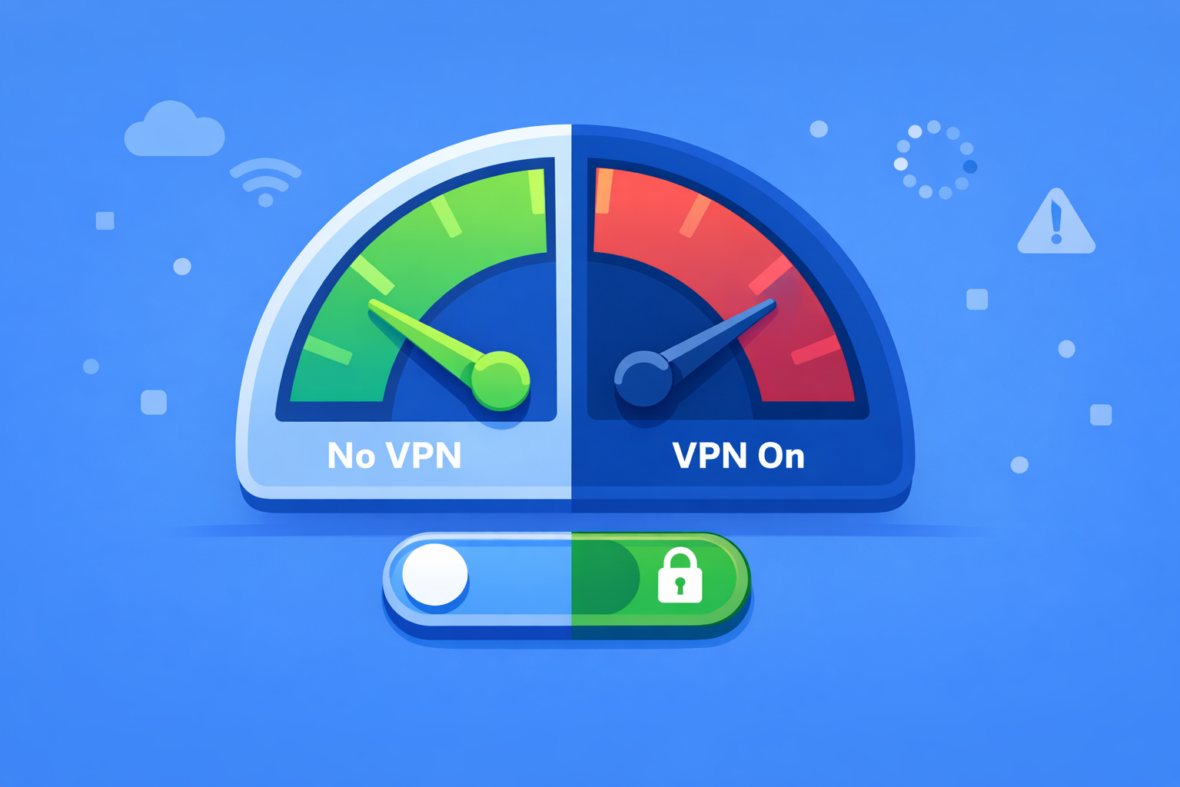
A slow VPN connection frustrates remote workers—video calls stutter, file uploads crawl, and simple web browsing feels like dial-up internet. But before blaming the VPN, it’s important to understand what “slow” actually means and whether your VPN is the real culprit or just part of the expected speed trade-off.
VPN slowdown is normal and expected, but excessive slowness usually points to specific fixable issues. Most speed problems result from server location, protocol choice, network congestion, or misconfigured device settings—all addressable with the right troubleshooting approach.
Understanding VPN Speed: What’s Normal?
When you connect to a VPN, your data travels further and gets encrypted, which naturally adds processing overhead. A small speed reduction is unavoidable—typically 5-15% slower than your unencrypted connection speed. This means if your base internet is 100 Mbps, expect 85-95 Mbps through VPN. This is normal and acceptable for most work.
However, speed varies dramatically by VPN server location. A server 50 miles away may add just 2-3ms of latency, while a server 5,000 miles away adds 80-120ms. Similarly, a server at 30% capacity feels fast; one at 90% capacity feels slow. Protocol choice matters too—WireGuard uses less CPU and adds less latency than OpenVPN or older protocols.
The real question isn’t “Is my VPN slower than no VPN?” but rather “Is my VPN slower than it should be?” If you’re consistently getting 80-90% of your normal speed with a nearby server and modern protocol, that’s working properly. If you’re getting 30-40% of normal speed, something needs adjustment.
💡 Measure your baseline
Before troubleshooting, test your internet speed without VPN first. Record both download and upload speeds, then test while connected to VPN on the same server. This shows your actual slowdown percentage.
Diagnosing the Actual Problem
Not all slowness is VPN slowness. Your issue could be network congestion, throttling by your ISP, a slow VPN server, poor Wi-Fi signal, or even the remote server you’re trying to reach. Proper diagnosis requires testing each component separately.
Start by disconnecting VPN and running a speed test on your home Wi-Fi. Record the numbers. Then connect to your VPN on the nearest server location available and run the same speed test. Compare the results. If your VPN speed is only 10-20% slower, that’s normal performance. If it’s 50%+ slower, continue investigating.
Next, test different VPN servers. If all servers are equally slow, the problem is likely your network connection, not the VPN service. If only distant servers are slow but nearby servers are fast, you’ve found your culprit—geography. If one specific server is slow but others are fast, that server is congested or overloaded.
Finally, test a different VPN protocol if your app offers multiple options. Switch from OpenVPN to WireGuard (if available) and retest. A significant speed improvement indicates your current protocol is inefficient for your connection. A similar speed indicates the protocol isn’t the bottleneck.
Common Causes of VPN Slowness
VPN speed issues have specific causes, each with distinct solutions. This table helps you identify which factor is affecting your connection.
| 🌍 Cause | Symptoms | Quick fix |
|---|---|---|
| Distant server | Slow everywhere, nearby internet is fast | Switch to geographically closer server |
| Congested server | One specific server is slow, others are normal | Switch to less congested server in same region |
| Wrong protocol | Speed improves slightly when switching protocols | Use WireGuard if available; avoid TCP |
| Wi-Fi signal weakness | VPN fast on Ethernet, slow on Wi-Fi | Move closer to router or use Ethernet cable |
| ISP throttling | VPN slow, base internet is fast; varies by protocol | Try VPN over different ports or protocols |
| Device overload | VPN works fine, everything else feels slow | Close background apps; restart device |
| Poor connection quality | Inconsistent speeds, frequent packet loss | Restart modem/router; check ISP status |
Server Selection and Geography
Server location is often the biggest speed factor. Many people connect to distant servers thinking it provides better privacy, not realizing they’re paying a huge latency penalty. In reality, your VPN provider’s no-logs policy protects your privacy regardless of server location.
For speed, always prefer the server geographically closest to your physical location. If you’re in New York and can choose between a New York server (15ms latency) and a London server (90ms latency), choose New York. The latency difference is dramatic and directly impacts responsiveness.
If your VPN provider shows server status or capacity indicators, use this information. A server at 20% capacity provides better speed than one at 85% capacity, even if they’re equally far away. Some providers show real-time server load; others show a simple “optimized for speed” or “congested” status. Avoid congested servers unless your privacy concerns outweigh speed needs.
For remote work, proximity almost always matters more than anything else. Test your connection speed on 2-3 nearest available servers and compare. One will usually feel noticeably faster than others. That’s your best server for remote work. Save it as a favorite or default connection for daily use.
💡 Server rotation
If your preferred nearby server becomes congested during peak hours, have a secondary server in the same region as backup. Rotate between them if you notice slowdown at specific times.
VPN Protocol Performance Comparison
Different VPN protocols add different amounts of latency and require different CPU resources. Modern protocols like WireGuard are optimized for speed; older protocols like PPTP are obsolete and should be avoided entirely.
| Protocol | Latency impact | Speed | When to use |
|---|---|---|---|
| WireGuard | Minimal (1-2ms overhead) | ⭐⭐⭐⭐⭐ Fastest | Best choice for speed; use if available |
| IKEv2 | Low (5-10ms overhead) | ⭐⭐⭐⭐ Very fast | Good for mobile devices; solid all-around |
| OpenVPN UDP | Moderate (10-20ms overhead) | ⭐⭐⭐ Good | Reliable, compatible; choose UDP over TCP |
| OpenVPN TCP | High (20-40ms overhead) | ⭐⭐ Slow | Only use if UDP is blocked by ISP |
| PPTP | Very high | ⭐ Very slow | Never use; security risks + slow |
If your VPN app offers WireGuard, use it. If not, request it. If only OpenVPN is available, select UDP variant. TCP is only necessary when ISPs block UDP ports, which is rare.
Device and Network Optimization
Sometimes VPN slowness isn’t about the VPN at all—it’s about how your device or network is configured. These optimizations can significantly improve experienced speed without changing your VPN server or protocol.
| Use Ethernet cable | Wired connections are 20-50% faster than Wi-Fi due to less interference and packet loss. Test on Ethernet to see speed potential. |
|---|---|
| Close background apps | Bandwidth-heavy apps (cloud sync, torrents, streaming) slow everything down. Pause them before speed-sensitive work. |
| Disable split tunneling | Split tunneling can cause slowdown on some connections due to routing complexity. Try disabling it temporarily to test. |
| Update VPN app | Newer versions include performance optimizations. Older versions may have slowdown bugs. Check app store for updates. |
| Restart modem/router | Network equipment accumulates state and sometimes needs a fresh start. Restart your modem, wait 30 seconds, then restart router. |
| Disable IPv6 if problematic | Some networks have IPv6 issues that cause slowdown. In VPN settings, look for IPv6 disable option and try it. |
| Test with kill switch off | Rarely, kill switch can interfere with speed. Temporarily disable it to test (only in secure networks). |
When VPN Slowness is Acceptable
Not all slowness is worth fixing. Some VPN slowness is a reasonable trade-off for security and privacy, and trying to optimize below a certain threshold is diminishing returns.
For remote work purposes, typical acceptable speeds are: 50+ Mbps for general work (email, web, documents), 25+ Mbps for video conferencing, and 10+ Mbps for basic internet use. If you’re hitting these thresholds, your VPN is adequate for remote work. Optimizing from 60 Mbps to 75 Mbps provides minimal practical benefit.
However, if you’re consistently below 10 Mbps on a nearby server with a modern protocol, something is wrong and worth investigating. Similarly, if video calls frequently drop or lag despite adequate base internet speed, VPN slowness may be the culprit.
The goal isn’t maximum speed—it’s adequate speed for your work. If your VPN meets your work requirements, you’re done. Chasing marginal speed improvements becomes counterproductive.
💡 Speed test accuracy
Speed test results vary based on the test server location, time of day, and network congestion. Run tests 3-4 times to get an average rather than trusting a single result.
Frequently Asked Questions About VPN Speed
-
Is a 10-20% speed reduction normal with VPN?
Yes, 10-20% speed reduction is normal and expected with VPN. Encryption adds overhead, and routing through a VPN server adds slight latency. If you’re seeing only 10-20% reduction, your VPN is performing well. Reductions of 50%+ indicate a specific problem worth investigating.
-
Why is VPN slower on Wi-Fi than Ethernet?
Wi-Fi inherently has more packet loss, interference, and variable signal strength than wired Ethernet. VPN adds complexity on top of an already imperfect connection. Test both connections to see the difference. If Wi-Fi is dramatically slower, move closer to your router or upgrade your Wi-Fi equipment.
-
Does changing VPN server location really improve speed?
Yes, dramatically. Latency increases with distance—a nearby server may add 5ms delay while a distant server adds 100ms+. For remote work, always use a server geographically close to your location. Test the nearest 2-3 available servers to find your fastest option.
-
Will switching to WireGuard make my VPN faster?
Usually yes, 5-15% faster. WireGuard uses more efficient encryption than older protocols like OpenVPN. If your VPN provider supports WireGuard, try it. You may notice faster speeds, lower CPU usage, and longer battery life. If not available, request it—it’s becoming the standard for modern VPN services.
-
Can my ISP slow down my VPN intentionally?
Yes. Some ISPs throttle or block VPN traffic to deprioritize it. If you notice slowness only with VPN but your base internet is fast, ISP throttling may be the cause. Try different VPN protocols—if OpenVPN is slow but WireGuard is fast, your ISP may be selectively throttling. Contact your ISP and ask directly.
-
Does enabling a kill switch slow down my VPN?
Rarely. Kill switch shouldn’t significantly impact speed on modern devices and systems. If you suspect kill switch is causing slowdown, disable it temporarily to test (only in secure home networks). If speed improves dramatically, contact VPN support—the kill switch implementation may be inefficient.
-
Why is my VPN slow only during certain times of day?
Time-based slowness indicates server congestion during peak hours. Many users connect to popular servers during evening/night hours, causing congestion. Solution: switch to a less-popular server in your region, or adjust your work schedule. Your VPN provider may also indicate peak-hour congestion in their status page.
-
Is my VPN speed adequate for remote work?
For most remote work: 25+ Mbps is adequate for video conferencing, 50+ Mbps handles multiple simultaneous activities (video call + file uploads), and 10+ Mbps is minimum for basic internet. If you’re hitting these thresholds, your VPN is adequate. If you’re consistently below 10 Mbps, investigate the cause.